
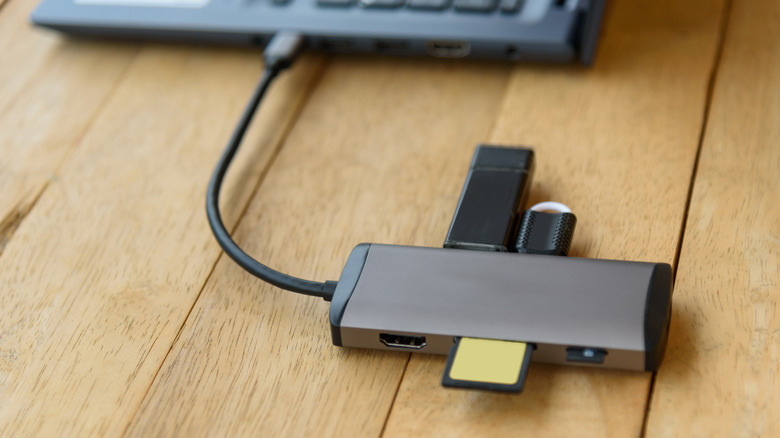
Never Plug These 5 Devices Into A USB Hub
We may receive a commission on purchases made from links.
USB hubs are not just convenient; they’ve become an increasingly necessary computer accessory, given how stingy many laptops are with USB ports these days. Thus, you’ll often need a USB dongle or hub to connect more than a couple of peripherals to your laptop. But with a great USB hub comes great responsibility. Knowing how to use it properly can mean the difference between optimizing your computer setup and breaking things.
There are several devices you should never plug into a USB hub, or at least may not work with all types of USB hubs. In some cases, these devices will only have limited functionality when connected to USB hubs, while some may not function with a hub. In the most extreme cases, they could break entirely, leading to data loss, damaged equipment, and more. To help you keep your tech safe and sound, we rounded up five types of devices that you should think twice before plugging into a USB hub.
Your smartphone won’t fast charge on a USB hub
Most modern smartphones use some form of USB fast charging over USB-C Power Delivery (PD). That faster charging is becoming more important, as it can mean the difference between topping off your battery while you shower and waiting multiple hours for it to charge — especially as battery capacities increase. In general, you shouldn’t charge your phone from a computer’s USB ports, since they don’t provide enough power for fast charging.
A USB hub is merely an extension of your computer’s USB ports, so the same logic applies. Although there are high-powered USB hubs that include fast-charging ports for mobile devices, these generally require a wall plug that draws the necessary power directly from your mains. With a portable, unpowered USB hub or dongle, you’ll be back at square one.
If you wish to charge your phone using a USB hub, you should make sure it’s a powered hub or dock with enough throughput to get the job done. Usually, such a dock will connect to a power outlet in addition to the host computer, either via a built-in power cord or by attaching a charging brick to a USB-C PD port. For instance, the Anker Prime Docking Station connects to the wall for power, allowing it to charge both a host laptop as well as a smartphone or other gadgets over USB.
An unpowered USB hub can cause issues with a hard drive
One item that you should never plug into most USB hubs is a hard drive. These drives have spinning platters inside which rotate at high speed to perform read and write operations. The bottom line here is that they require a certain amount of power to keep those parts in motion and can experience issues, including degraded performance, if they don’t receive it. Many hubs, including some powered units, are only intended for flash drives, which require significantly less power. A hard drive that isn’t receiving enough power may emit a clicking sound from the drive head, indicating that the heads are being damaged. If this occurs, power the drive off immediately.
This is not to say that every USB hub poses a threat to all portable HDDs, only that it’s simply not worth rolling the dice. Even if the HDD doesn’t fail on the spot, plugging it into the wrong port on your computer or USB hub can add significant wear and tear that may cause it to fail far sooner than it otherwise would. It might die on you six months later, leaving you thinking it was a defective product when, in reality, you shortened its lifespan.
You’ll need a powered USB dock or hub to use a portable HDD safely. Even so, be sure the dock or hub you choose has the required data transfer speeds to make the most of your portable USB storage drive. Avoid plugging an HDD (or even some SSDs) into your hub unless you can verify that the two are compatible.
High-bandwidth devices can be too powerful for a USB hub
USB hubs do not expand your bandwidth, which refers to the amount of data that can travel through a given path at once. A USB port can only transfer so much data — exactly how much is contingent on which generation of USB it uses — and although a hub can add several more USB ports, it will always be bottlenecked by the host port you plug it into. In fact, some USB hubs may have even less bandwidth than the host port. You can think of your computer’s USB port as a main river, with each port on the USB hub analogous to a tributary stream. The devices you connect push data through those streams. Connect too many devices, or a single, powerful device, and you may overflow those banks.
For instance, if you connect multiple storage devices to a USB hub, you may experience noticeable lag when opening or transferring files between them, even if the hub can run each at full speed in isolation. A storage drive in combination with a high-resolution webcam could cause the former to slow down and the latter to deliver a choppy or glitchy video feed, for example.
Bottlenecks are more likely if you're using a slower USB 2
0 hub, and may be less severe when using USB 3.x SuperSpeed. If your hub supports USB4, it may not even be an issue. But if the host port itself is using an older USB version, it won’t matter how much bandwidth the hub can handle. Always ensure that you have enough bandwidth for all your devices on the host port and your USB hub.
Don’t daisy-chain USB hubs
If you’ve ever run out of ports on a USB hub, you may have thought of a seemingly ingenious solution: plugging another USB hub into the first one, thereby doubling the available ports. However, this is a bad idea for several reasons. First, you’re further constricting your available bandwidth, as described earlier. It’s like trying to fit an elephant through a dog door by adding an even smaller dog door. Second, every layer of hardware data flows through adds latency — that is, the time it takes for an action or input to produce a response or output — which can become a huge problem if you’re attaching input peripherals or audio gear to the end of that chain.
Underpowered or unpowered USB hubs are also bad news for certain devices, and yet another reason not to daisy chain your hubs is that it will further impede power distribution, potentially leading to errors when you plug devices into the USB ports at the end of the chain — or even break those devices. While you can safely daisy chain USB hubs in very specific scenarios, you should not do so unless you are confident in the specs of your computer, the hubs, and all of the devices you plan on connecting, as well as how all of them are likely to interact with one another.
USB4 gadgets are held back by USB hubs
The USB standard is governed by a consortium known as the USB Implementers Forum, or USB-IF, which has improved the protocol’s speeds and capabilities over the years. The latest generation of USB is USB4 Version 2.0. These are the fastest type of USB ports, capable of transferring data at up to 80 Gbps and supplying 240 watts of power. However, although the first USB4 specification was announced in 2019, products using the protocol have been slow to arrive.
There are very few USB4-capable USB hubs on the market as of this writing, though Thunderbolt docks are available (if expensive). Unless your USB hub or dock specifically mentions USB4 support, you’re likely using one that supports some version of USB 3.x. Because USB4 is backward-compatible, your USB4 peripherals and accessories will still function when connected to a USB 3 hub or dock, but will run at slower speeds. Now, it’s worth noting that Thunderbolt 4 and Thunderbolt 5 match USB4 and USB4 Version 2.0’s data transfer rates of 40 and 80 Gbps, respectively, as well as the charging speeds of 100W and 240W. A Thunderbolt 4 or 5 hub or dock will therefore be compatible with USB4 peripherals. However, for powered peripherals, you must still ensure your hub is powered properly, as explained earlier in this article.
Of course, none of this matters unless your computer also supports USB4, which is unlikely unless it’s a new and relatively high-end machine. If it is, you must also ensure you’re plugging your USB4 hub into a USB4 port to take advantage of its speeds.